Typer is a quick keyboard game where single letters fly toward a red circle in the center of the screen. You can play Typer unblocked right in your browser: hit the matching key and that letter bursts into tiny colored dots, but miss one and it crashes into the core and costs a life. You never type whole words, only one key at a time, which makes it a fun way to get faster at finding letters.
How to Play Typer
Each letter enters from the left or right edge at a random height and heads straight for the core. Speeds vary from letter to letter, so a slow one that appeared first might arrive after a fast one that showed up later.
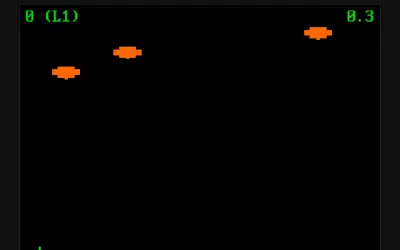
Hit the right key and the letter pops for one point. Press a letter key that has no match on screen and you lose a point. Your score and remaining lives sit at the top of the screen, and the whole game fills your browser window.
Your First Minute
When the page loads, letters start flying right away. Rest your fingers on the home row, keep your eyes near the middle, and press each letter as you read it. New letters appear at a fairly steady rate, about one per second, so the first minute is mostly about learning to scan both sides of the screen.
Lives and Game Over
You begin with 10 lives. Each time a letter touches the core, you lose one, a “Start again” alert pops up, and every letter on screen is wiped away. Your score stays, so a lost life is a setback, not a reset.
When the tenth life is gone, a “Game over” alert appears and the page reloads. That clears your score back to zero, so jot it down if you are trying to beat a personal best.
The pace never ramps up during a run. What makes long games hard is losing focus, not rising speed.
Capital Letters or Not
The game opens in case-sensitive mode. Uppercase and lowercase letters both appear, and the key press must match: a capital needs Shift held down, and a lowercase letter needs Shift released. That adds a second skill on top of finding the key.
Click the Case sensitive button above the play area to switch it off. Then only small letters appear, and Shift does not matter. Beginners may want to start this way and turn capitals back on later. The button label changes to show which mode you are in.
Typer Tips for a Higher Score
- Handle the fastest threat first. A slow letter near the edge can wait. A quick one halfway to the core cannot.
- Watch for repeats. When the same letter is on screen twice, your key press pops the one that appeared most recently, not the one closest to the core. Press it again right away.
- Read before you press. Since wrong keys cost points, take a split second to be sure.
- Use Esc to pause. It freezes the screen if a wave of letters shows up while you need a breath. Press Esc again to continue.
- Keep your hands on home row. Returning to the same starting spot makes every key easier to reach without looking down.
- Check Shift in case-sensitive mode. A correct letter with the wrong case counts as a miss and costs a point.
Mistakes New Players Make
The most common mistake is looking at the keyboard. Every glance down is a moment when a letter can slip through. Another is mashing keys when the screen gets busy, which drains points fast. Finally, many players watch only one side. Letters come from both edges, so let your eyes sweep left and right.
Playing on a Chromebook or Laptop
Typer only needs a keyboard, so a school Chromebook is a natural fit. It adjusts when you resize the window and keeps the core in the middle, so it also works in a smaller window next to your notes. A tiny speed meter sits in a lower corner showing how smoothly the game runs.
Phones and tablets will not work well, since touch screens do not bring up a keyboard for it. The game has no sound, so it is fine to play in a quiet room.
Why It Works as a Study Break
A round lasts as long as your lives do, from a couple of minutes to much longer once you get good. Because it trains real keyboard skills, it is an easy game to justify during free time. Find more in the casual games section, or try one of these:
- Math Sprint Game swaps letters for quick true-or-false equations, so you train number skills instead of typing.
- Piano Keys turns your keyboard into a three-octave synth piano, so you practice key positions while making music.
- Mole Tap asks for the same fast reactions with a mouse or touch screen.