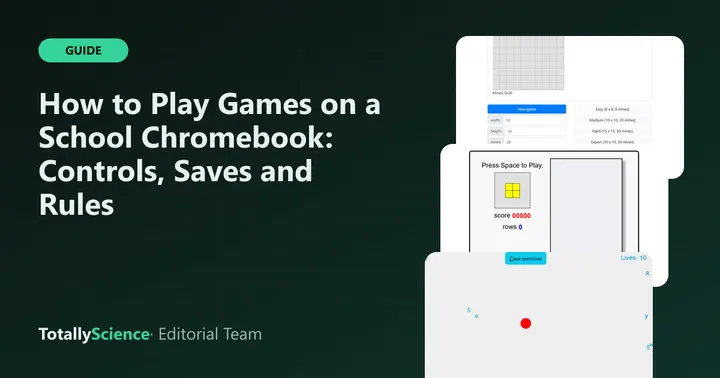
You can play games on a school Chromebook by opening a browser game in a normal Chrome tab, with nothing to install. On Totally Science, every game runs from our own website, so you press play, use full screen if you want more room, and your progress saves in that browser. The rest is about picking games that match your controls and following your school’s rules.
This guide covers the practical parts: screen size, keyboard vs touchpad, how saves work, and how to clear them.
Start a Game and Use Full Screen
Each game page has a large play button over the game. Press it and the game loads inside the page, right under the title.
Below the game you will find a small toolbar. It has a Full screen button, a restart button, a button to copy the link, and a heart that adds the game to your saved list.
Full screen helps a lot on a small Chromebook display. Games get bigger, and stray clicks are less likely to land outside the game. To leave, press Esc or use the Exit full screen button.
Chromebooks also have a full screen key in the top row of the keyboard. Google lists it, along with many other shortcuts, on its Chromebook keyboard shortcuts page. That key enlarges the whole browser window, which is different from the game’s own full screen button.
Keyboard vs Touchpad vs Touchscreen
Your controls matter more than anything else when choosing a game. A great game feels bad if it needs keys you are not using.
Using the touchpad
Most puzzle, board and card games only need clicks, so a touchpad works fine. Tap with one finger to click. Tap or click with two fingers to right-click. Google explains these gestures on its Chromebook touchpad help page.
Right-click matters in a few games. In Mine Field, for example, right-click places a flag. On a touchscreen you press and hold a square instead.
Using the keyboard
Arrow keys and W A S D are the most common keys in action and arcade games. Space often jumps or fires. If a game does not respond to keys, click inside the game area once so it has focus, then try again.
Using a touchscreen
Some Chromebooks fold into a tablet or have a touchscreen. Many of our games accept taps and swipes, but a handful wait for real key presses and show no on-screen keyboard.
Which Games Need a Keyboard and Which Work With Touch
Here is a quick sample based on the controls listed for each game. Every game page on Totally Science also shows its supported devices in the quick-facts box.
| Game | Main controls | Works with touch? | Good fit for |
|---|---|---|---|
| Falling Blocks | Keyboard | No | Laptop or Chromebook keyboard |
| Typer | Keyboard | No | Typing practice on a real keyboard |
| Radius Raid | Keyboard plus mouse aim | No | A mouse, not a touchpad |
| 2048 | Arrow keys or swipes | Yes | Any device |
| Number Trail | Clicks or taps | Yes | Touchpad or touchscreen |
| Mine Field | Clicks, right-click to flag | Yes, hold to flag | Touchpad with two-finger click |
A simple rule: if the game asks you to move and aim at the same time, use a keyboard and a mouse. If it is turn-based or click-based, a touchpad is enough.
For calm, click-friendly picks, browse our puzzle games. Most of them work on any Chromebook.
How Saving Progress Works
Browser games usually save in local storage. That is a small space inside your browser where a website can keep data on your device.
Here is what that means for you:
- Your saves stay on one device and one browser. They do not follow you to a different Chromebook.
- Signing in with a different account, or using a guest session, gives you a fresh, empty save.
- Some games keep a full game in progress, like 2048, while others only keep best scores or best times.
- A few games keep nothing at all. Mine Field starts over when you reload the page.
Some school-managed Chromebooks may also clear browser data when you sign out, depending on how your school set them up. If progress keeps vanishing, that is a likely reason, and it is not something a game site can change.
Clearing game data
Sometimes you want a clean start, or a game seems stuck. Clearing your site data resets saved games, scores and settings.
In Chrome, this lives under the option to delete browsing data. Google walks through the steps on its delete browsing data help page. Choosing cookies and other site data removes game saves, so only do it when you really want them gone.
Keep in mind that clearing everything also signs you out of other websites. If a school device is managed, some of these options may be turned off.
Tips for Smooth Play on a Chromebook
Chromebooks used in schools are often modest machines. A few habits keep games running well:
- Close tabs you are not using. Fewer open pages leave more memory for the game.
- Turn the sound down or mute the tab before you start, especially in a shared room.
- Use the restart button on the game page if a game freezes, instead of reloading the whole site.
- Pick lighter games when the battery is low. Turn-based games use less power than fast 3D ones.
- Add favorites with the heart button so they show up in your saved games list.
If a game looks squished, try full screen or rotate a convertible Chromebook to match the game’s shape.
Be Respectful of School Rules
A school Chromebook belongs to your school, and its rules come first. Many schools allow games only during free time, after work is done, or not at all.
Your school network also uses filters, and they can block any website, including ours. If a site is blocked, accept that and move on. Do not try to get around filters with proxies or other tricks, since that can break school rules and put your device access at risk. Our explainer on what unblocked games means covers why some sites load and others do not.
A few good habits help:
- Play only when your teacher says it is okay.
- Keep the volume off in class.
- Close the tab right away when free time ends.
- Never let a game get in the way of homework.
If you want ideas for a short gap between tasks, our list of unblocked puzzle games for study breaks groups games by how long they take.
Find Your Next Game
You now have the basics: full screen for a bigger view, the right controls for each game, and saves that live in your browser. When you are ready, open the Totally Science homepage to browse every category and pick something that fits your device and your time.
Frequently asked questions
Do I need to install anything to play games on a Chromebook?
No. Every game on our site runs inside a normal Chrome tab, so there is no app, extension or download involved. Open a game page, press play, and the game loads from the same website. If a page does not load at all, your school network may simply block it.
Why did my saved progress disappear?
Game saves sit in your browser's local storage on that one device. Clearing your browsing data, switching to a different Chromebook, using a guest session or signing in as another user will all show an empty save. Some school devices may also clear data when you sign out.
Can I play with a touchpad instead of a mouse?
Yes, for most click-based games. A one-finger tap works as a click, and a two-finger tap or click works as a right click. Fast action games that need a keyboard plus quick aiming are harder on a touchpad, so pick slower puzzle or board games instead.
Is it okay to play games on a school Chromebook?
That depends on your school. Many schools allow quiet games during free periods or after work is done, and others do not allow them at all. Check your school's device policy, follow your teacher's rules, and close the tab when class starts again.